Free custom domain email with Gmail, Cloudflare, and an SMTP relay
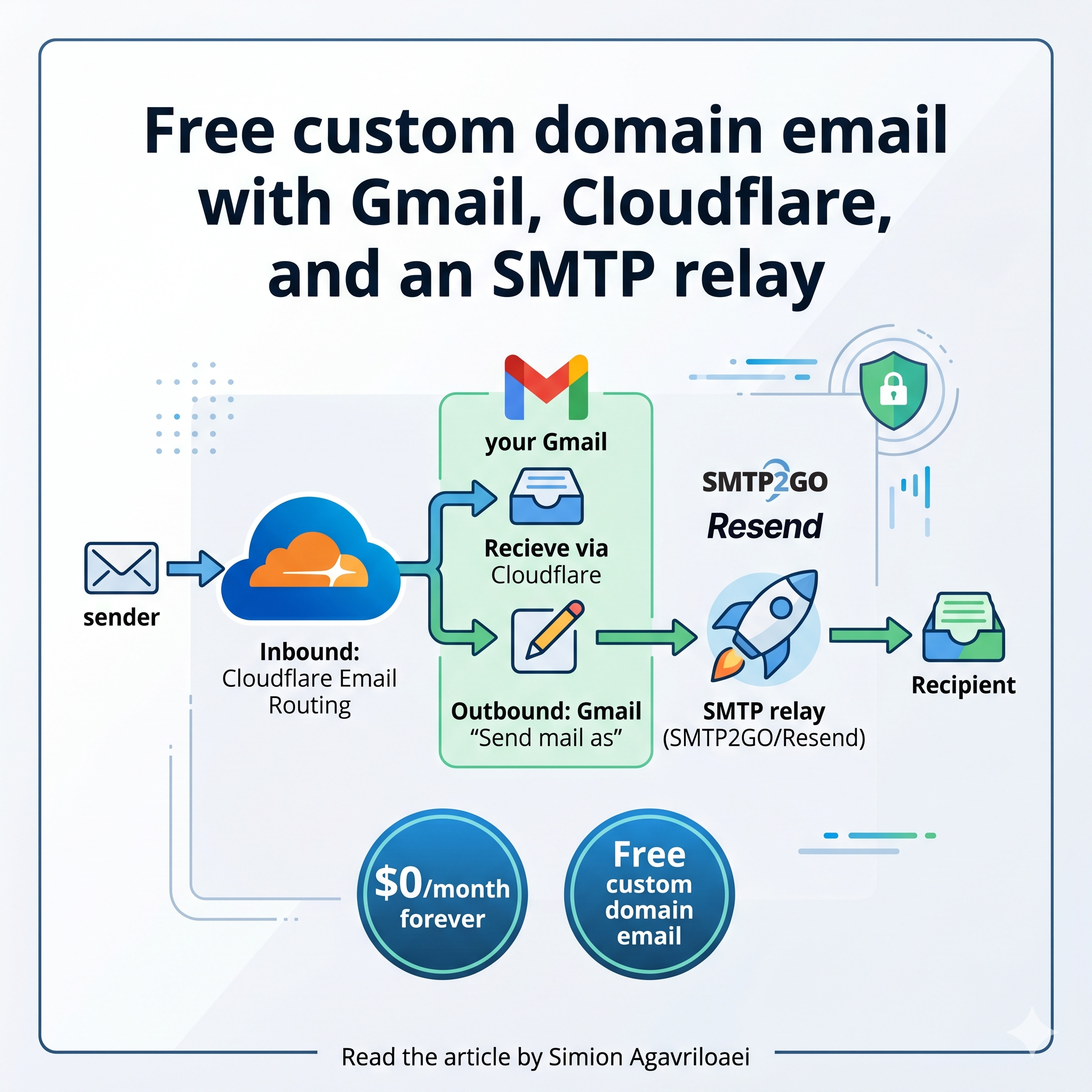
Route hello@yourdomain.com into your personal Gmail with Cloudflare, send replies from it via SMTP2GO or Resend. No Google Workspace bill. $0/month forever.
simion@agav.ro lands in my regular Gmail inbox. When I reply, the recipient sees simion@agav.ro in the From field. No Google Workspace subscription. No separate inbox to check. Total monthly cost: $0.
TL;DR: Cloudflare Email Routing catches mail to your domain and forwards it to any Gmail address for free. For sending, Gmail’s “Send mail as” pipes outbound through a free SMTP relay (SMTP2GO or Resend) so the From header keeps your custom domain. Domain registration is the only bill.
Why skip Google Workspace
Workspace costs $6/user/month. Personal domain with two or three aliases doesn’t justify $72/year per address. You also get locked into Google’s admin UI and billing just to change an MX record.
Honest caveats before you commit:
- Relay has a quota. 1k to 3k emails/month free. Fine for personal replies, not newsletters.
- No shared inbox, no team features. One Gmail account holds everything.
- Message size capped at 25 MiB (Cloudflare’s limit on forwarding).
- If you send bulk mail from the same domain later, plan SPF/DKIM carefully.
If none of that scares you, read on.
Stack at a glance
Inbound: sender → MX on Cloudflare → Email Routing → your Gmail.
Outbound: Gmail compose → SMTP relay (SMTP2GO/Resend) → recipient.
Cloudflare handles receive. Relay handles send. Gmail is the UI in the middle. DNS ties it together.
Phase 1: receiving with Cloudflare Email Routing
- Cloudflare Dashboard → pick your domain → Email → Email Routing.
- Destination addresses tab → add your personal
@gmail.com. Check Gmail, click verification link. - Routing rules tab → Create address. Type
hello@yourdomain.com, forward to the verified Gmail. - Cloudflare prompts to auto-add MX and SPF TXT records. Click Add records.
Done. Send a test to hello@yourdomain.com, it shows up in Gmail in seconds.
Limits worth knowing on the free tier:
- 200 routing rules max
- 200 destination addresses max
- 25 MiB max per message
- Free forever, no card on file
Catch-all rule is the move if you want anything@yourdomain.com to land in one inbox. Good for burner signups.
Phase 2: pick a sender
Two free relays worth using. Pick one.
| SMTP2GO free | Resend free | |
|---|---|---|
| Emails / month | 1,000 | 3,000 |
| Daily cap | 200 | 100 |
| Hourly cap | 25 (until domain verified) | none declared |
| Sender domains | up to 5 | 1 |
| SMTP host | mail.smtp2go.com | smtp.resend.com |
| Ports | 587 / 2525 / 465 | 587 / 2587 / 465 / 2465 |
| SMTP password | SMTP user password | your Resend API key |
| Log retention | 5 days | 1 day |
| Best for | personal replies, multiple domains | dev already using Resend for app mail |
My pick for this setup: SMTP2GO. Higher daily cap, multiple domains on one account, longer activity log, setup aimed at SMTP rather than API. Resend is built for transactional app email. Both work. If you already pay nothing to Resend for SaaS transactional, reusing it is fine.
SMTP2GO setup
- Sign up at smtp2go.com, free plan, no card.
- Settings → Sender Domains → add
yourdomain.com. It shows CNAME records for DKIM, return-path, and click tracking. If your domain is on Cloudflare, SMTP2GO detects it and offers to add them for you in one click:
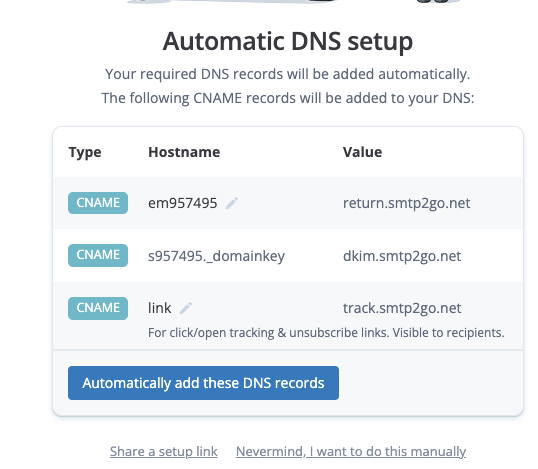
Paste them into Cloudflare DNS (or click the auto-add button). Wait for verification (minutes). 3. Settings → SMTP Users → add user. Save username and password. This is what Gmail will use.
Resend setup
- Sign up at resend.com, free plan.
- Domains → add
yourdomain.com. It gives you MX, SPF, DKIM records. Add to Cloudflare DNS. - API Keys → create one with
Sending access. This key is the SMTP password. Username is literallyresend.
Phase 3: wire the relay into Gmail
- Open Gmail → Accounts and Import.
- Under Send mail as → Add another email address.
- Name +
hello@yourdomain.com. - Uncheck “Treat as an alias”. This matters. Explanation below.
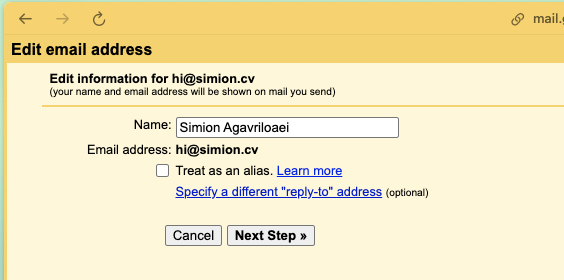
- Next. Enter relay details:
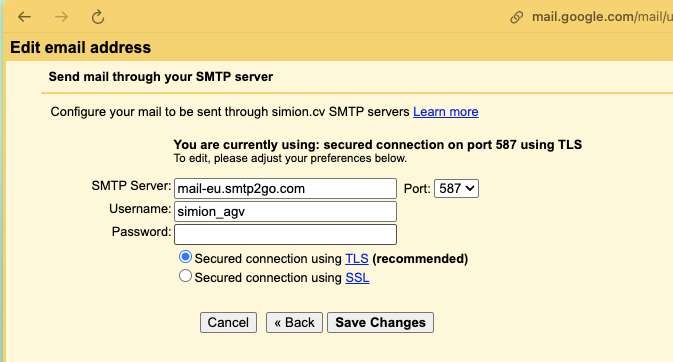
SMTP2GO:
  Server:   mail.smtp2go.com
  Port:     587
  Username: <smtp2go user>
  Password: <smtp2go password>
  Use TLS

Resend:
  Server:   smtp.resend.com
  Port:     587
  Username: resend
  Password: <your Resend API key>
Use TLS- Gmail sends a verification email to
hello@yourdomain.com. Cloudflare forwards it to your Gmail inbox within seconds. Paste code into the popup. - Back in Send mail as, set
hello@yourdomain.comas default if you want new mails and replies to originate from it. - Also set When replying to a message → Reply from the same address the message was sent to.
Why uncheck “Treat as an alias”
“Treat as alias” is for Workspace group addresses where inbound and outbound share the same physical mailbox. Your setup is different: inbound is Cloudflare forwarding, outbound is a relay. They’re two separate systems glued through Gmail. Unchecking makes Gmail treat the address as external, which keeps Reply-To behavior correct and stops Gmail from rewriting From headers in weird ways. Leaving it checked breaks replies for some recipients.
DNS records you end up with
After both phases, Cloudflare DNS for yourdomain.com has roughly:
MX   @              route1.mx.cloudflare.net        (priority 13)
MX   @              route2.mx.cloudflare.net        (priority 86)
MX   @              route3.mx.cloudflare.net        (priority 24)
TXT  @              v=spf1 include:_spf.mx.cloudflare.net include:spf.smtp2go.com ~all
TXT  s1._domainkey  <DKIM value from relay>
TXT  _dmarc         v=DMARC1; p=none; rua=mailto:hello@yourdomain.com
CNAME em._domainkey <relay-specific>
SPF has to include BOTH Cloudflare (for bounce handling on inbound) AND your relay’s SPF. One v=spf1 record total. Merging them wrong is the #1 reason mail lands in spam.
Gotchas I hit
- Verification code never arrived. Routing rule wasn’t saved yet, or MX records hadn’t propagated. Wait 5 min, resend.
- Gmail shows “via smtp2go.com” to recipients. DKIM not verified yet, or domain alignment failed. Finish SMTP2GO domain verification, wait for all three records to go green.
- SPF soft fail in Gmail postmaster. Two
v=spf1TXT records on the same name. Merge into one. - “Treat as alias” checked by default. Gmail pre-checks it. Uncheck. I broke replies for a week before noticing.
- Reply still comes from your gmail account. You forgot step 8. Set reply-from behavior in Gmail settings.
- Cloudflare forwards hit Gmail spam. Sender’s domain was the issue, not yours. Not fixable from this side.
What this costs over a year
- Cloudflare Email Routing: $0
- SMTP2GO free: $0
- Gmail: $0
- Domain: whatever you already pay
Workspace equivalent: $72/year per mailbox. Multiply by however many aliases you’d want.
That’s the whole trick.